
Extracting Measurements with OCR
Presto OCR automates the extraction of measurements from ultrasound sonographer worksheets, DEXA worksheets, prior reports, intake forms, and labeled charts, and integrates them into your report. Instead of manually transcribing values, capture a screenshot and let Presto read the measurements for you. For prior reports, intake forms, and labeled charts, Presto also automatically extracts patient age and sex when present.
Step 1: Click the OCR button
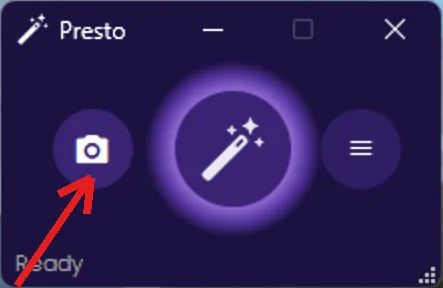
Section titled “Step 1: Click the OCR button”With a report open in PowerScribe and Presto connected, click the camera button on the left side of the Presto widget. This activates region selection mode.
Step 2: Select the measurement area
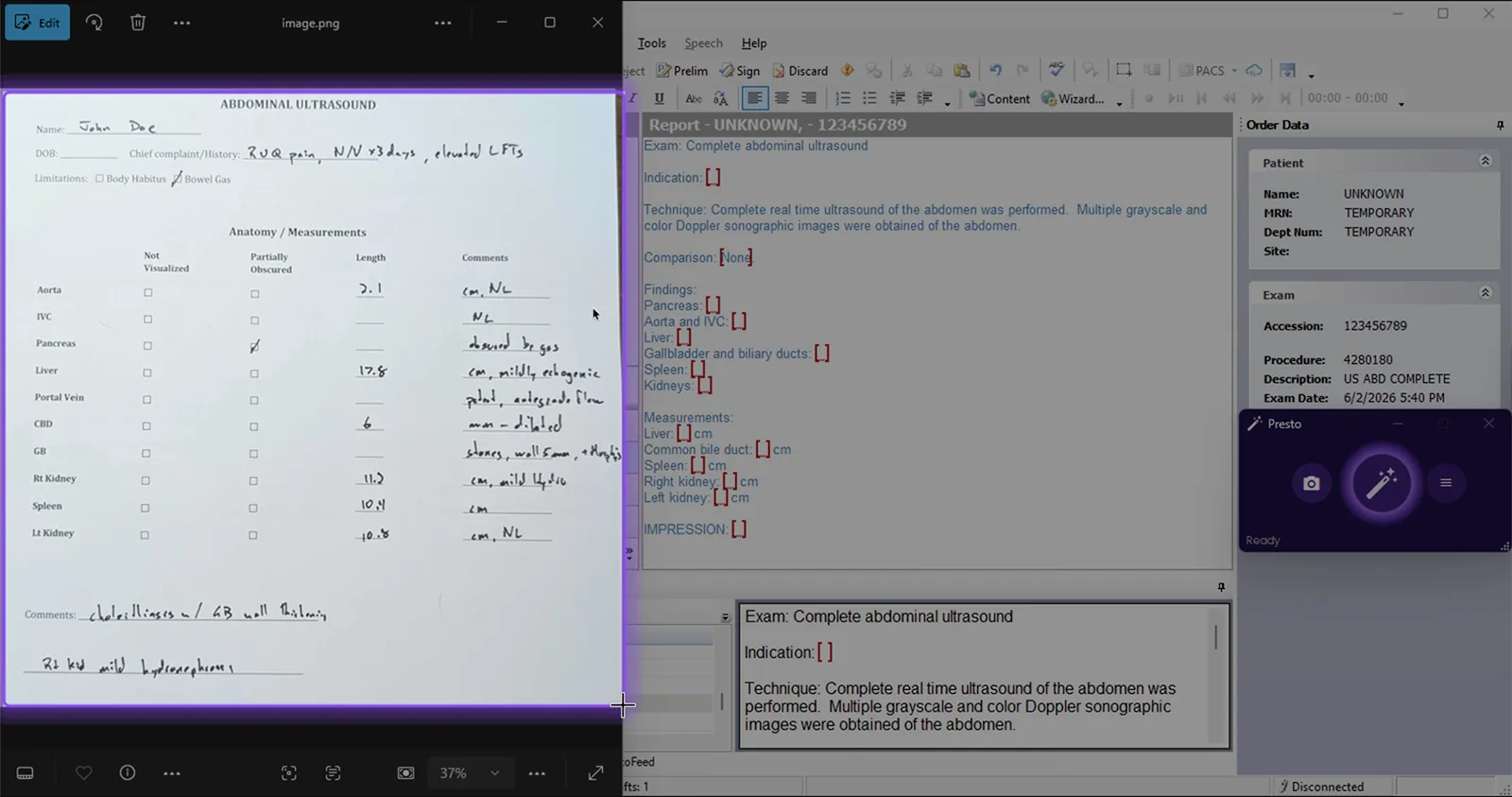
Section titled “Step 2: Select the measurement area”Your screen will dim and the cursor will change to a crosshair. Click and drag to draw a rectangle around the measurements you want to extract — this can be an ultrasound sonographer worksheet, DEXA worksheet, prior report, intake form, labeled chart, or any other on-screen measurement source displayed in your PACS viewer or desktop.
Release the mouse button to complete the selection. Presto captures the selected region and sends it for processing.
Step 3: Review the extracted measurements
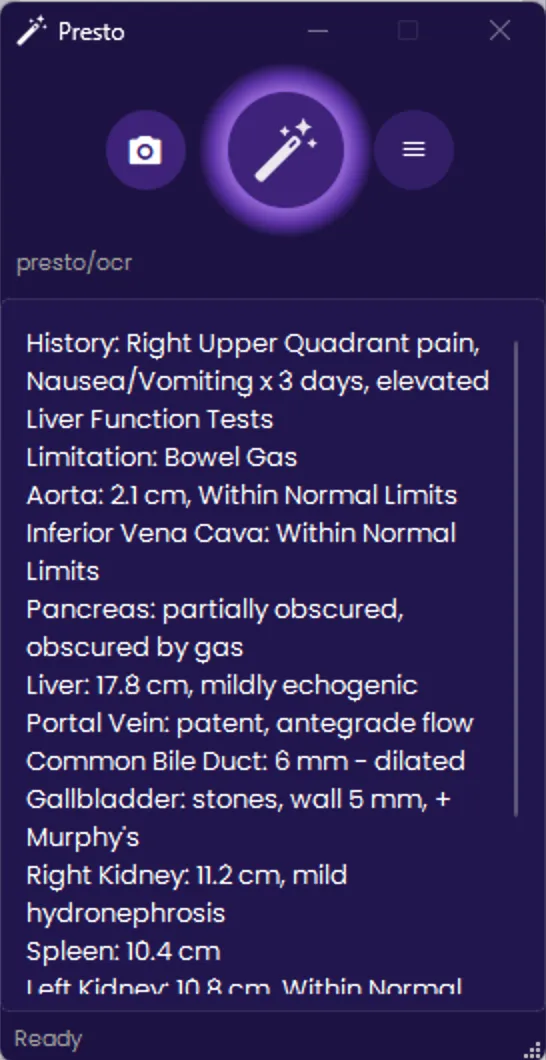
Section titled “Step 3: Review the extracted measurements”After a few seconds, the extracted measurements appear in the Presto widget as a new finding. Each measurement is listed on its own line with its value and unit preserved exactly as shown on the source document.
Step 4: Merge into your report
Section titled “Step 4: Merge into your report”Click the merge button (or the shortcut on your microphone or keyboard shortcut) to merge the extracted measurements into your report, just like any other finding. Presto routes each measurement into the appropriate template field.
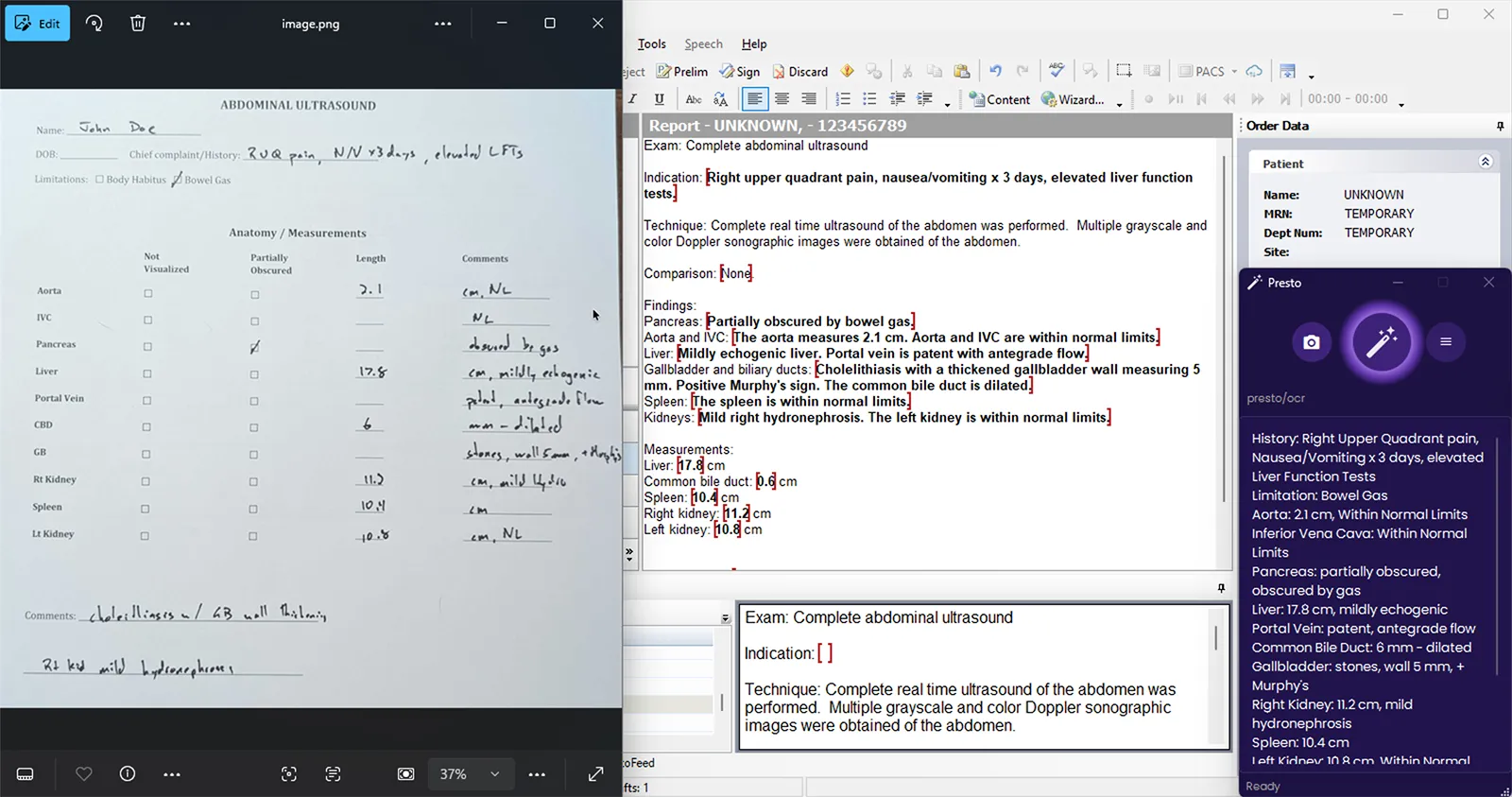
If Auto Merge is enabled, OCR findings merge automatically once OCR completes — no click required.
Other capture modes
Section titled “Other capture modes”In addition to region selection, Presto supports window capture mode. Right-click the camera button to open a menu with two options:
- Capture Screen Region — Click and drag to select a rectangular area (default, described above).
- Capture Window — Hover over any application window to highlight it, then click to capture the entire window contents.
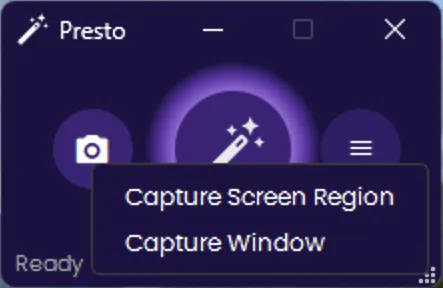
Window mode is useful when the measurements fill an entire application window and you want to capture everything without drawing a selection box.