

Migrating to PowerScribe One
PowerMic buttons
Section titled “PowerMic buttons”If you use PowerMic buttons to trigger Presto — for example Merge Findings or Capture — PowerScribe One must not have its own action assigned to those same buttons. Otherwise PowerScribe intercepts the press before Presto sees it. Button assignments may not carry over from PowerScribe 360, so check them here.
Step 1: Open Preferences
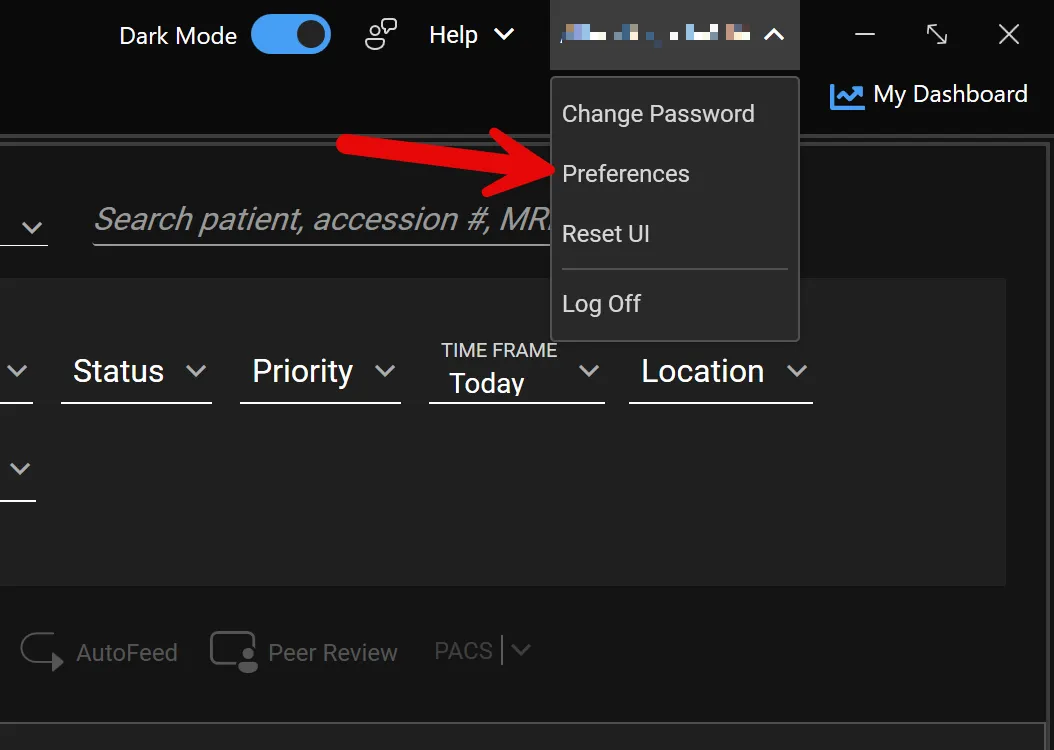
Section titled “Step 1: Open Preferences”In PowerScribe One, click your user name in the top-right corner and choose Preferences.
Step 2: Clear your PowerMic buttons
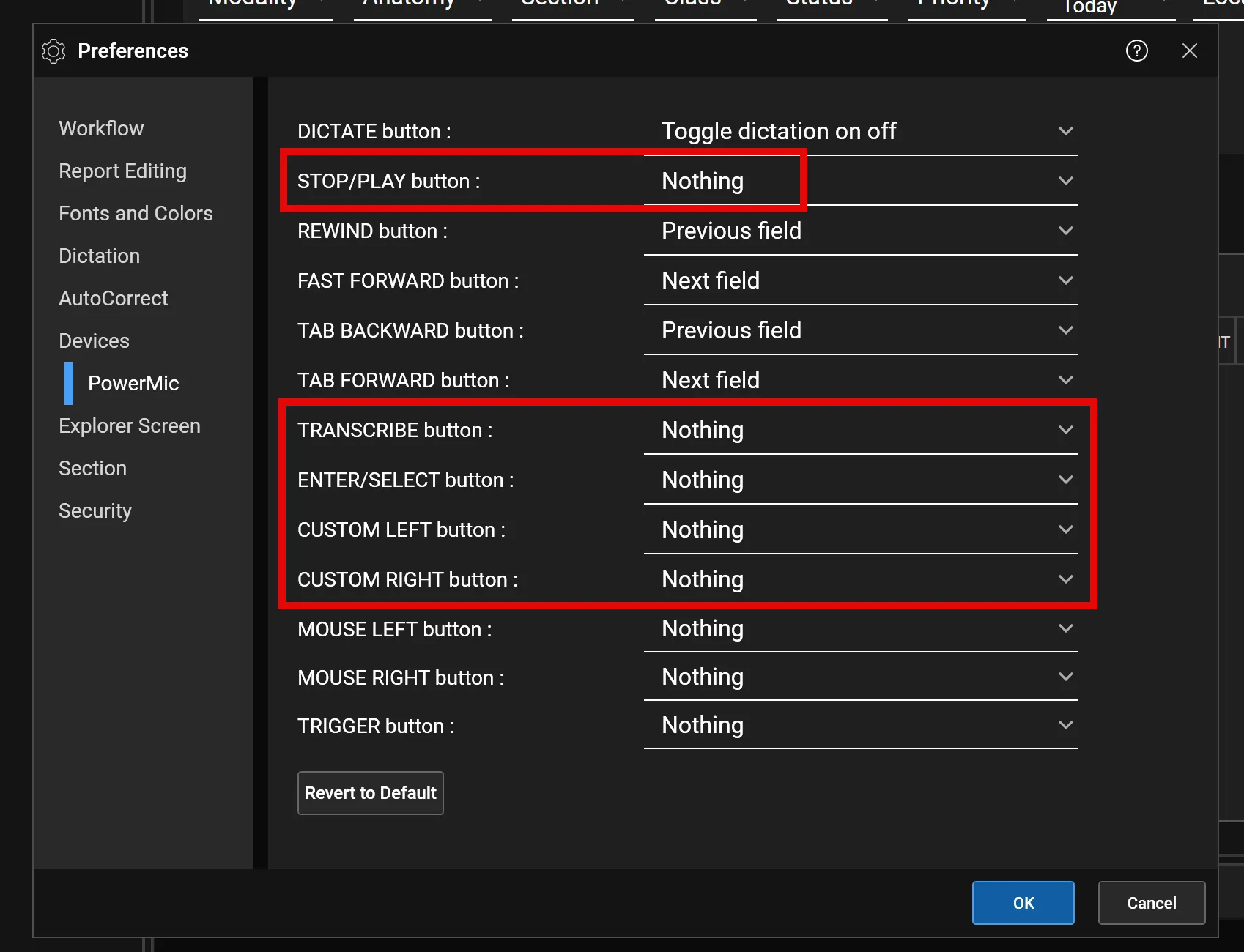
Section titled “Step 2: Clear your PowerMic buttons”Select Devices → PowerMic in the left sidebar. For every button you use with Presto, set its action to Nothing. Leave DICTATE as your normal dictation control. Click OK to save.
To choose which Presto action each button performs, and for the full list of supported devices, see Setting Up Microphone Buttons & Keyboard Shortcuts.
Presto Anywhere field
Section titled “Presto Anywhere field”Presto Anywhere lets you dictate findings into a dedicated field in your report and have Presto merge them automatically, without opening the Findings panel. The Presto Findings field you created in PowerScribe 360 may not transfer to PowerScribe One. If it didn’t, recreate it here. This is a one-time setup that takes about a minute.
Step 1: Create a new AutoText
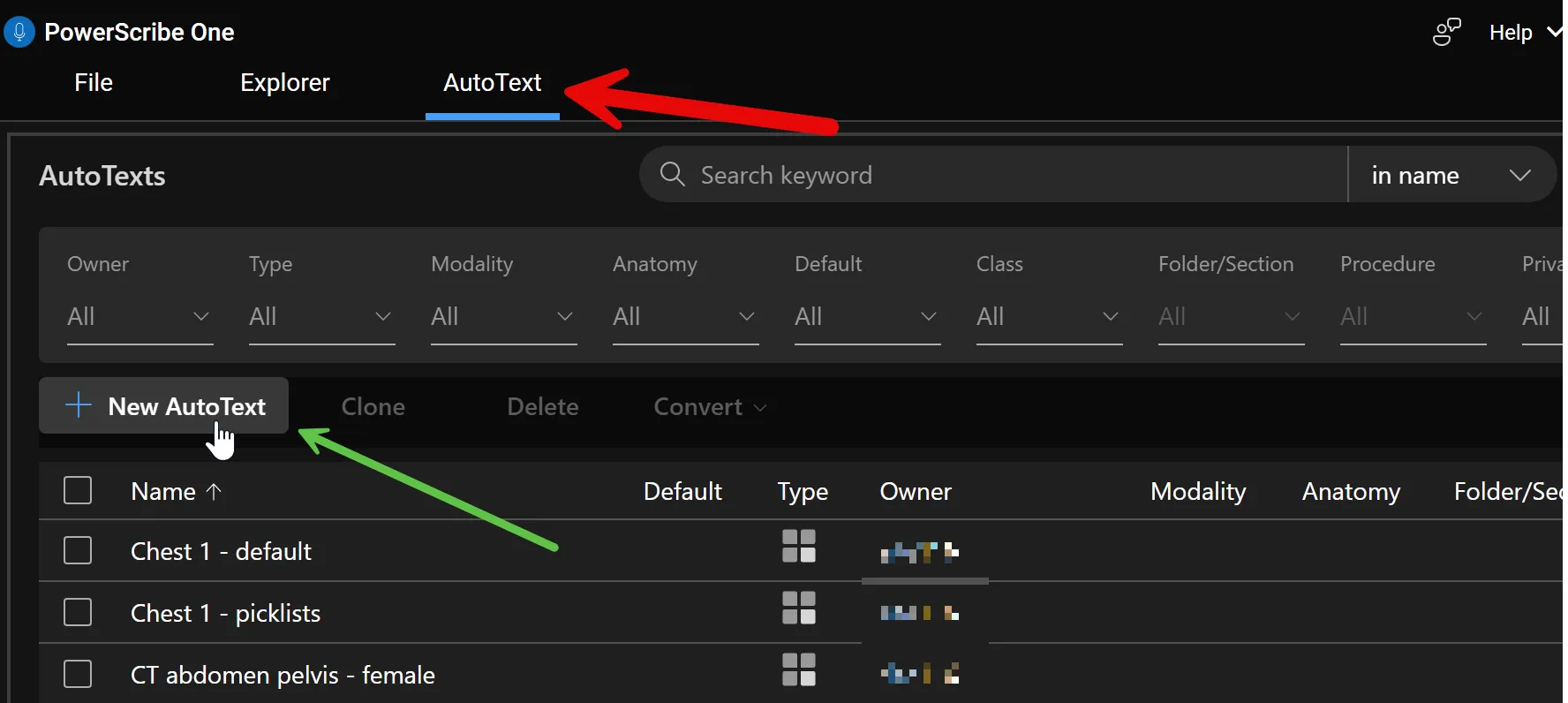
Section titled “Step 1: Create a new AutoText”In PowerScribe One, open the AutoText tab and click + New AutoText.
Step 2: Name the AutoText and set the type
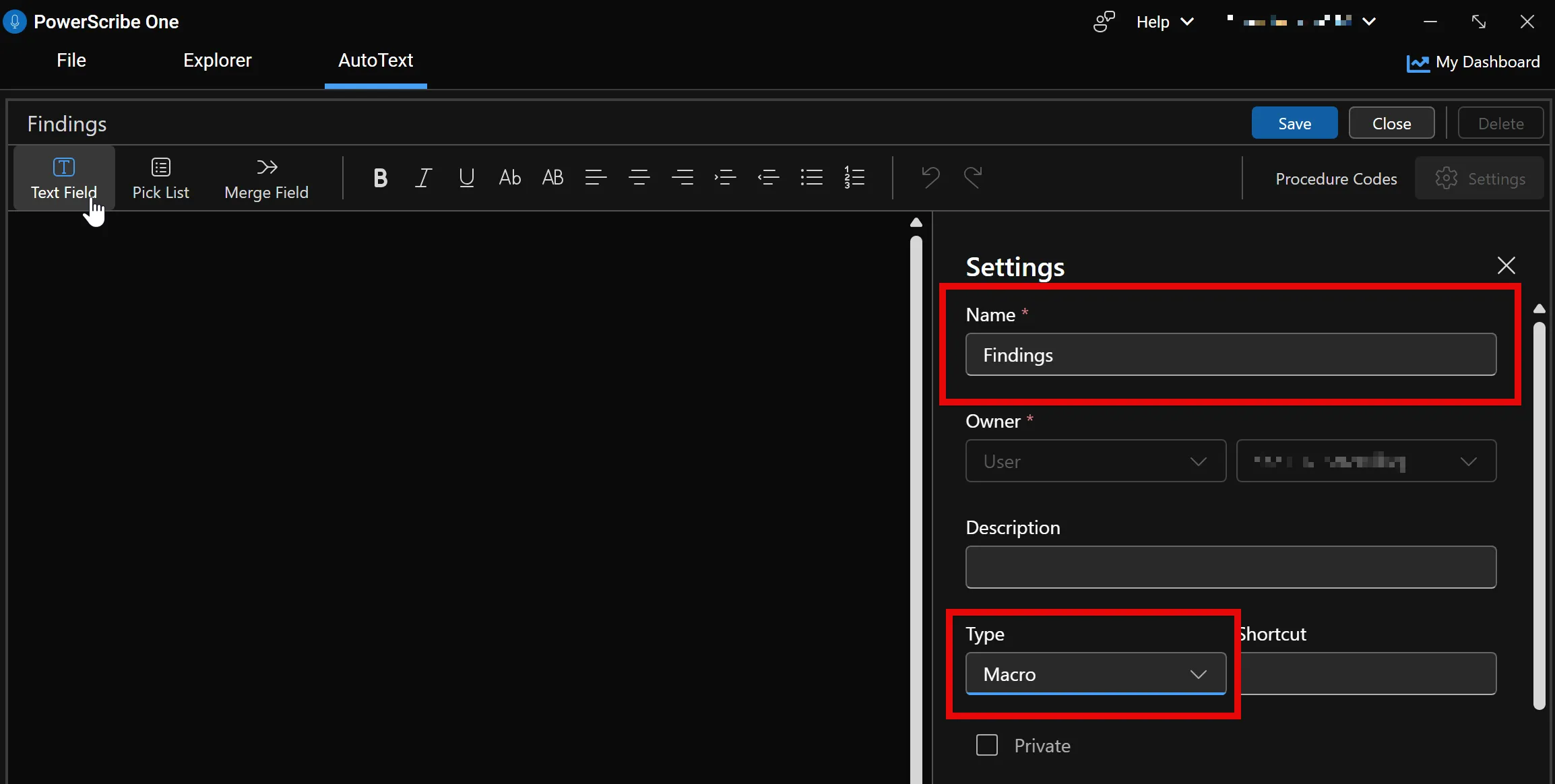
Section titled “Step 2: Name the AutoText and set the type”In the Settings panel, set:
- Name:
Findings(or any name you prefer — choose something easy to invoke by voice) - Type:
Macro
Step 3: Add the Presto Findings field
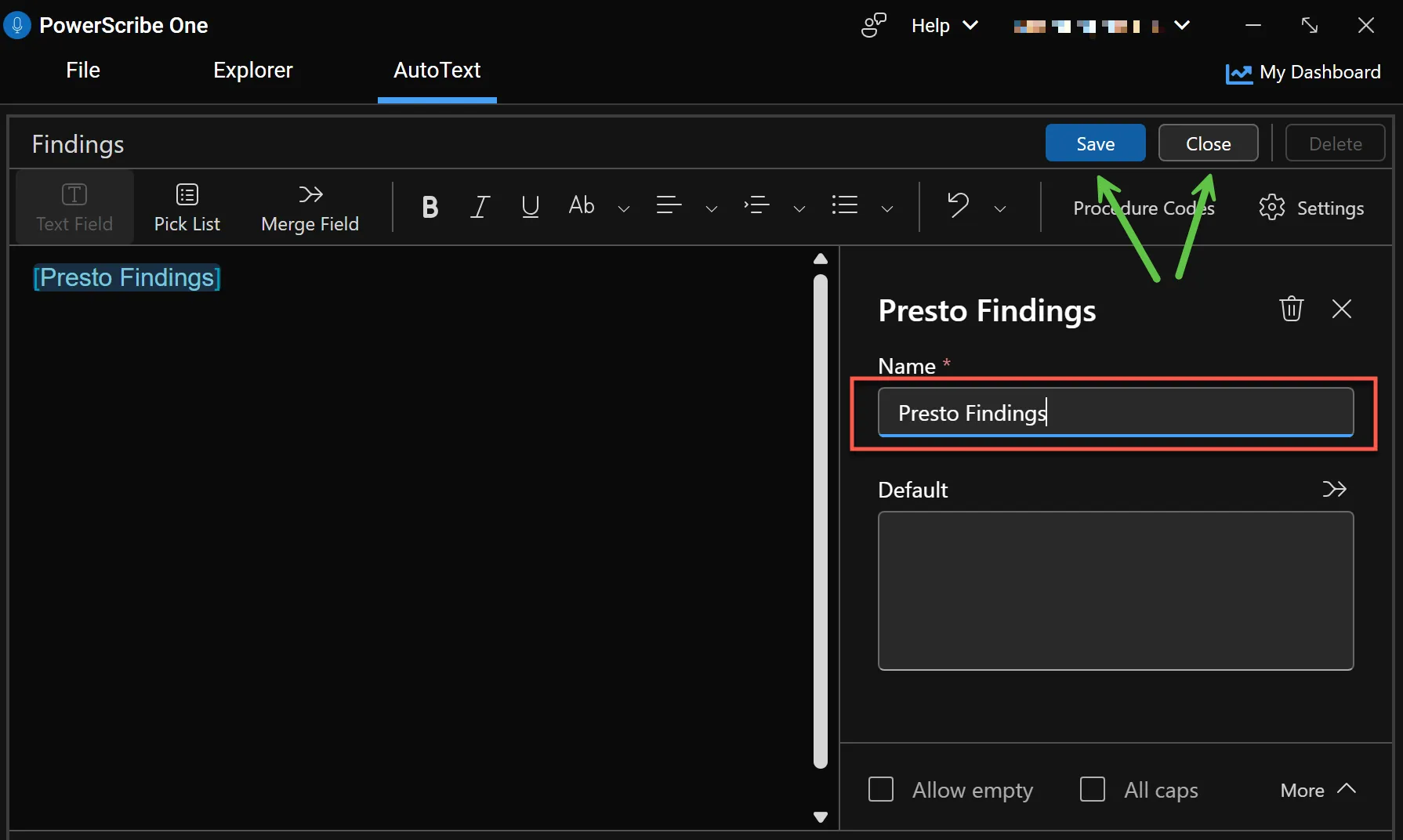
Section titled “Step 3: Add the Presto Findings field”In the AutoText editor, click Text Field in the toolbar to insert a fill-in field. In the field’s settings, set the Name to Presto Findings, then click Save.
Step 4: Use it in your reports
Section titled “Step 4: Use it in your reports”Insert the Findings AutoText into your report (or whatever you named the AutoText), then dictate or type your findings into the Presto Findings field — in any format, no special punctuation or formatting required. Click the merge button in the Presto widget (or use your microphone or keyboard shortcut), and Presto routes your findings into the correct template fields and generates an impression.
For the full Presto Anywhere workflow and tips, see Presto Anywhere.