

Using Presto with Rad AI Reporting
Presto works alongside the Rad AI Reporting desktop app on Windows. Dictate findings into a PrestoFindings field in your report, or capture a worksheet, and Presto merges them into the right places in your Rad AI report.
Step 1: Confirm Presto is connected
Section titled “Step 1: Confirm Presto is connected”Open Rad AI Reporting and open a report. When Presto recognizes the study, its buttons turn purple and the status line reads “Ready”. With no report open, the buttons stay gray and the status reads “Waiting”.
Step 2: Add the PrestoFindings field to your report
Section titled “Step 2: Add the PrestoFindings field to your report”Presto reads your dictation from a field named PrestoFindings. The easiest way to add it is a Rad AI macro that holds just that field.
- In Rad AI, create a macro (for example, Findings) containing one field named PrestoFindings. Presto also accepts
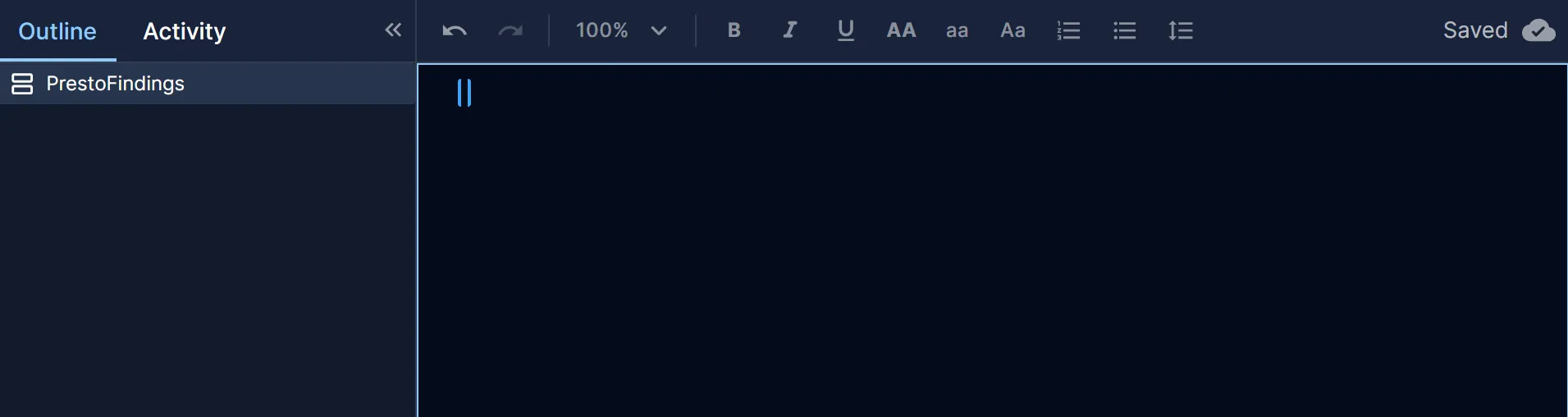
Presto Findingsorpresto-findings. - To add the field to a report, open the Templates panel on the right, select Macros, find your macro, and click +.
The field appears in the report and in the Outline on the left.
Step 3: Dictate and merge
Section titled “Step 3: Dictate and merge”Dictate your findings into the PrestoFindings field, then click the merge button (or press your merge shortcut). Presto merges the findings into the matching sections and fields of your report, writes an impression according to your Impression Style, and removes the PrestoFindings field.
During the merge, Rad AI comes to the front and you’ll briefly see the report selected and replaced. Don’t type in the report until the merge finishes. If the report changes mid-merge, Presto pastes nothing and asks you to merge again.
Capture
Section titled “Capture”Presto Capture works the same way as with PowerScribe, including capturing several worksheet pages and merging them together. Captured measurements merge into your Rad AI report.
Undo a merge
Section titled “Undo a merge”- Press Ctrl+Z in Rad AI to undo a whole Presto merge in one step.
- Or use Restore on the merge in the Presto Feed.
What’s different in Rad AI
Section titled “What’s different in Rad AI”- Measurement fields are never changed. Rad AI sends some fields on as measurements (for example EDD or GA). If a merge would change one, Presto pastes nothing and names the field: “Presto left this report unchanged: the merge would have changed a field Rad AI sends on as a measurement (EDD), which Presto never edits. Enter the value in Rad AI, then merge again.”
- Changed pick-lists become text. When Presto changes a pick-list or optional sentence, it becomes an editable text field with the merged value, and its dropdown choices are no longer available in that report. Pick-lists Presto doesn’t change are left alone.
- Patient demographics are never written.
- One text color after a merge. Rad AI shows the merged report as your own text, so template and Omni color coding doesn’t carry over.
- Clipboard. A merge uses the clipboard and restores any text you had there. Images or files on the clipboard are not kept.