Multi-Image Capture and the Feed
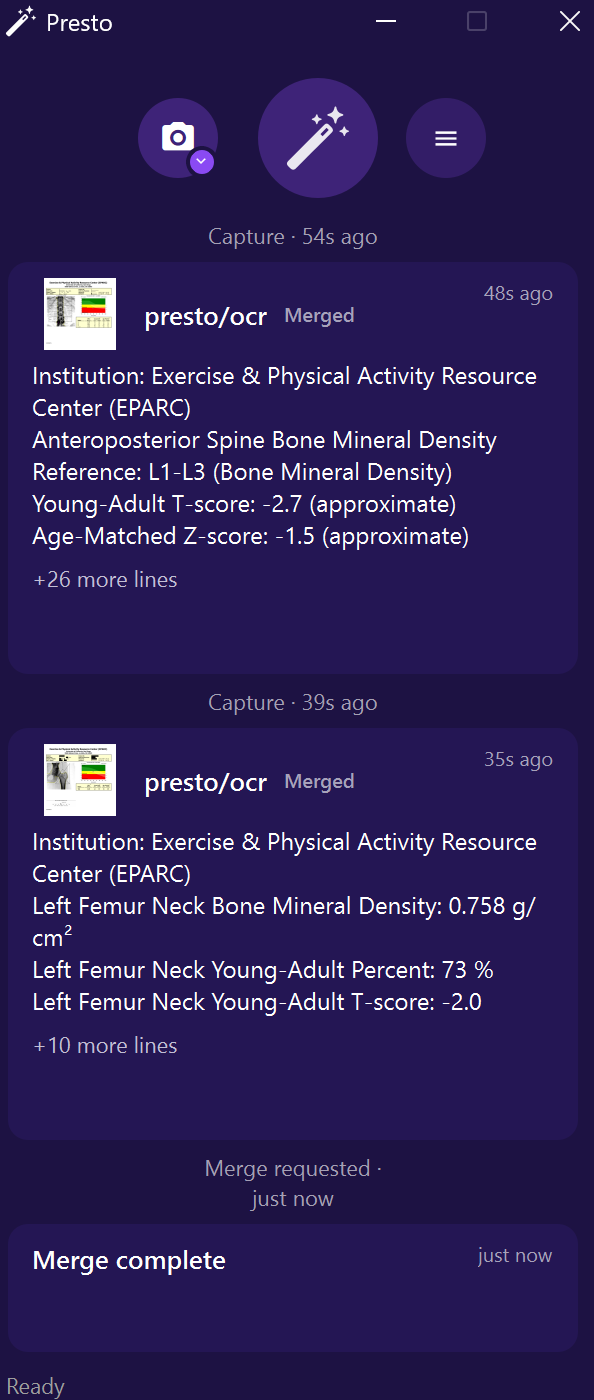
The Feed shows everything Presto does on the current report, and lets you capture several worksheet pages and merge them in one step.
The Feed
Section titled “The Feed”The Feed replaces the findings panel below the Presto widget. It lists each capture and merge on the current report in order, newest at the bottom, and starts fresh when you open a new report.
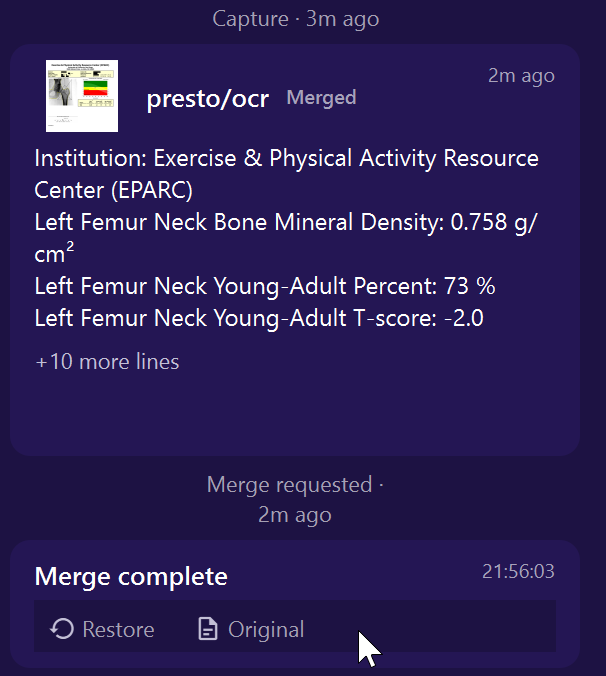
Hover over an entry to see its buttons:
- Copy copies the entry’s text.
- Restore (on a merge) puts the report back exactly as it was before that merge. Presto asks you to confirm first.
- Original (on a merge) copies the report as it was before that merge, so you can put it back yourself.
Detach the Feed
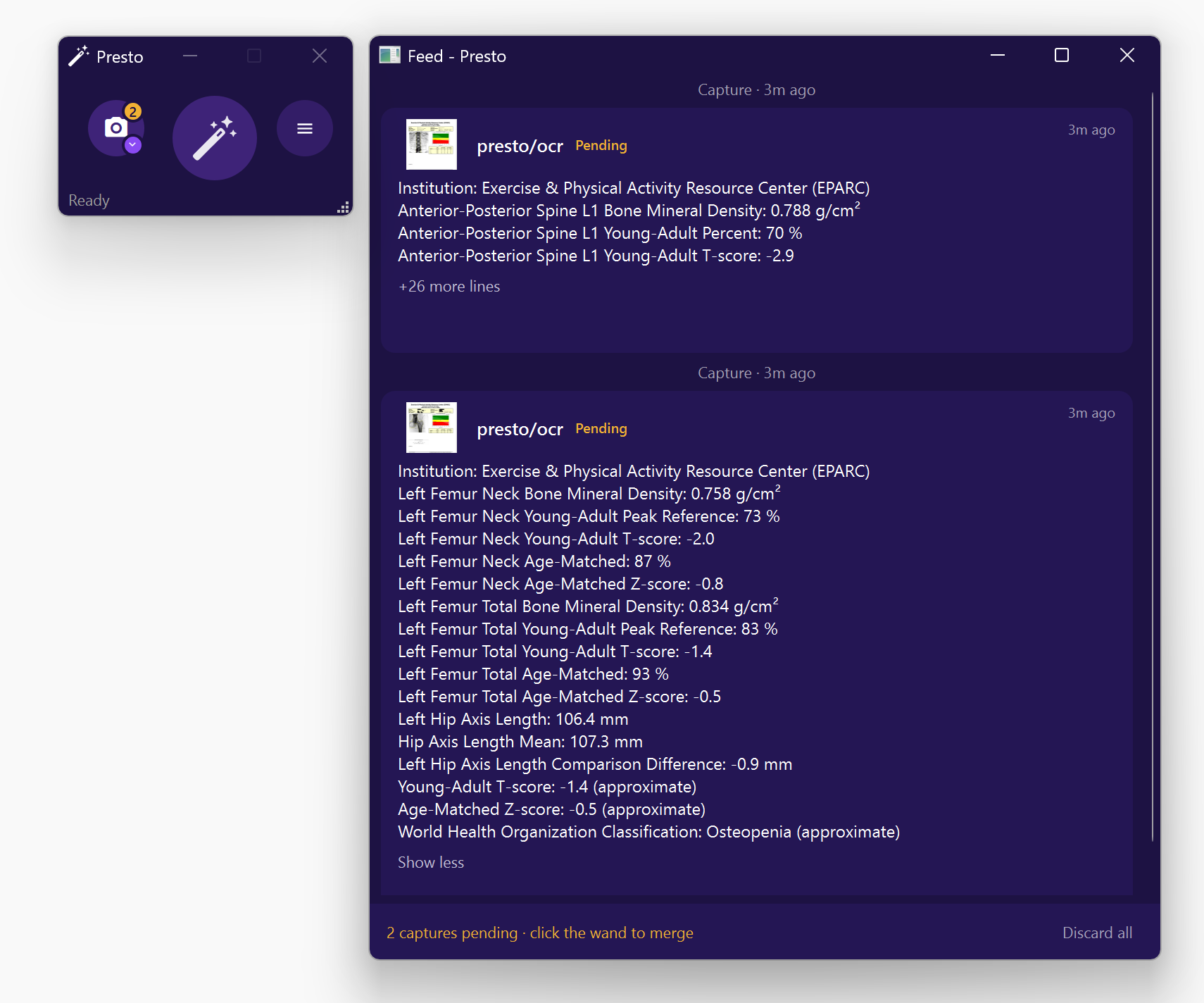
Section titled “Detach the Feed”To give the Feed more room, open the ☰ menu and turn on Detach Feed. The Feed opens in its own window that you can move and resize separately from the Presto widget. Turn on Feed Stays on Top to keep it above other windows. Presto remembers the Feed window’s position and size on this workstation.
To put it back, turn off Detach Feed or close the Feed window.
Capture several pages, then merge once
Section titled “Capture several pages, then merge once”You can capture several worksheet pages, such as a multi-page ultrasound or DEXA worksheet, and merge them into your report together.
Step 1: Capture each page
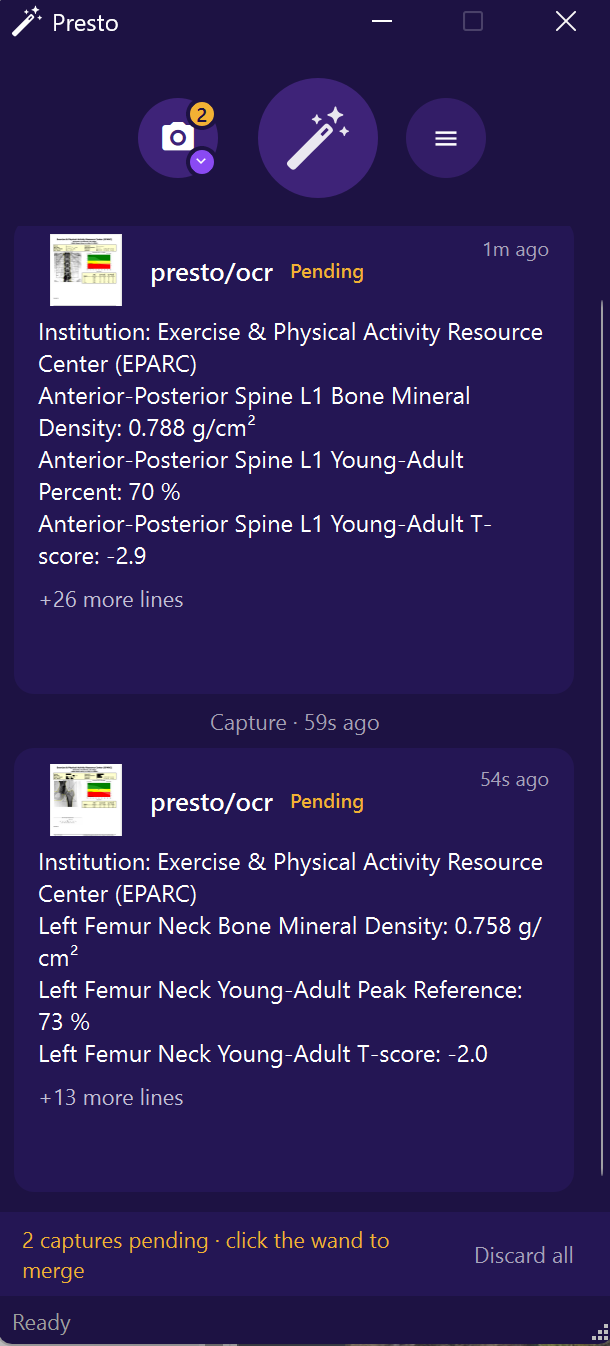
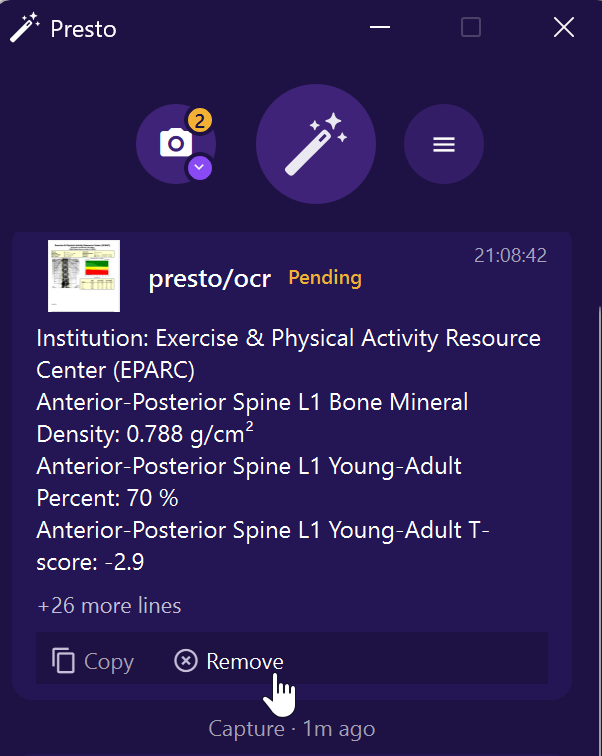
Section titled “Step 1: Capture each page”Capture each page as usual. Each capture appears in the Feed marked Pending, with a thumbnail of what you captured. Click the thumbnail to enlarge it. The camera button shows how many captures are waiting.
If you capture the same page twice, Presto skips the copy and says so in the Feed.
Step 2: Remove anything you don’t want
Section titled “Step 2: Remove anything you don’t want”Hover over a pending capture and click Remove. Changed your mind? Click Undo. To drop all pending captures, click Discard all at the bottom of the Feed.
Step 3: Merge
Section titled “Step 3: Merge”Click the merge button (the wand), or use your merge shortcut. Presto merges all pending pages into the report at once, in the order they appear in the Feed, and marks them Merged.