

Customizing Merge & Capture Guidance
The Prompt Guidance page lets you write personal instructions that Presto follows on every merge and every capture. Use it to adjust how findings are integrated into your template, and how extracted measurements are labeled and formatted.
Step 1: Sign in to Presto
Section titled “Step 1: Sign in to Presto”Go to app.presto.run. If you’re not signed in, enter your email and follow the login steps.
Step 2: Open Prompt Guidance
Section titled “Step 2: Open Prompt Guidance”Open the left navigation drawer, then go to Personal → Prompt Guidance (/settings/guidance/).
You’ll see three guidance slots. All three start blank.
- Merge Guidance — how your dictated findings go into your report template.
- Impression Guidance — how Presto writes the impression. Does nothing if your impression style is set to none.
- Capture Guidance — how Presto reads values out of a captured screenshot.
A rule only works in the slot that matches it. Guidance in the wrong slot does nothing.
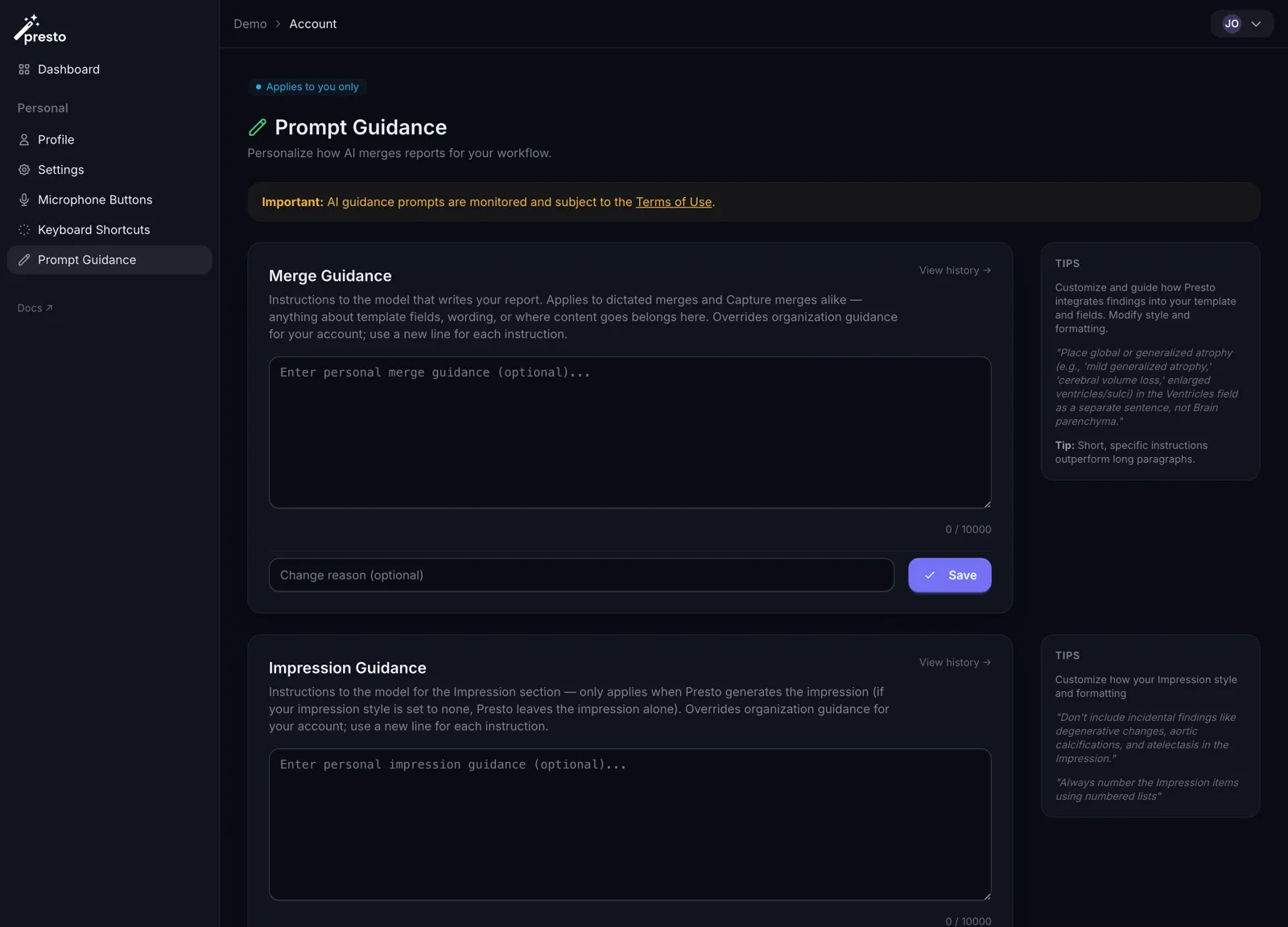
Step 3: Customize Merge Guidance
Section titled “Step 3: Customize Merge Guidance”Merge Guidance controls how Presto integrates your dictated findings into your report template. Write brief instructions for how you’d like your findings handled. For example:
- “Put retrocardiac opacity in the lungs field, not the cardiac field”
- “Be more concise”
Use a new line for each instruction. Short, specific instructions work best.
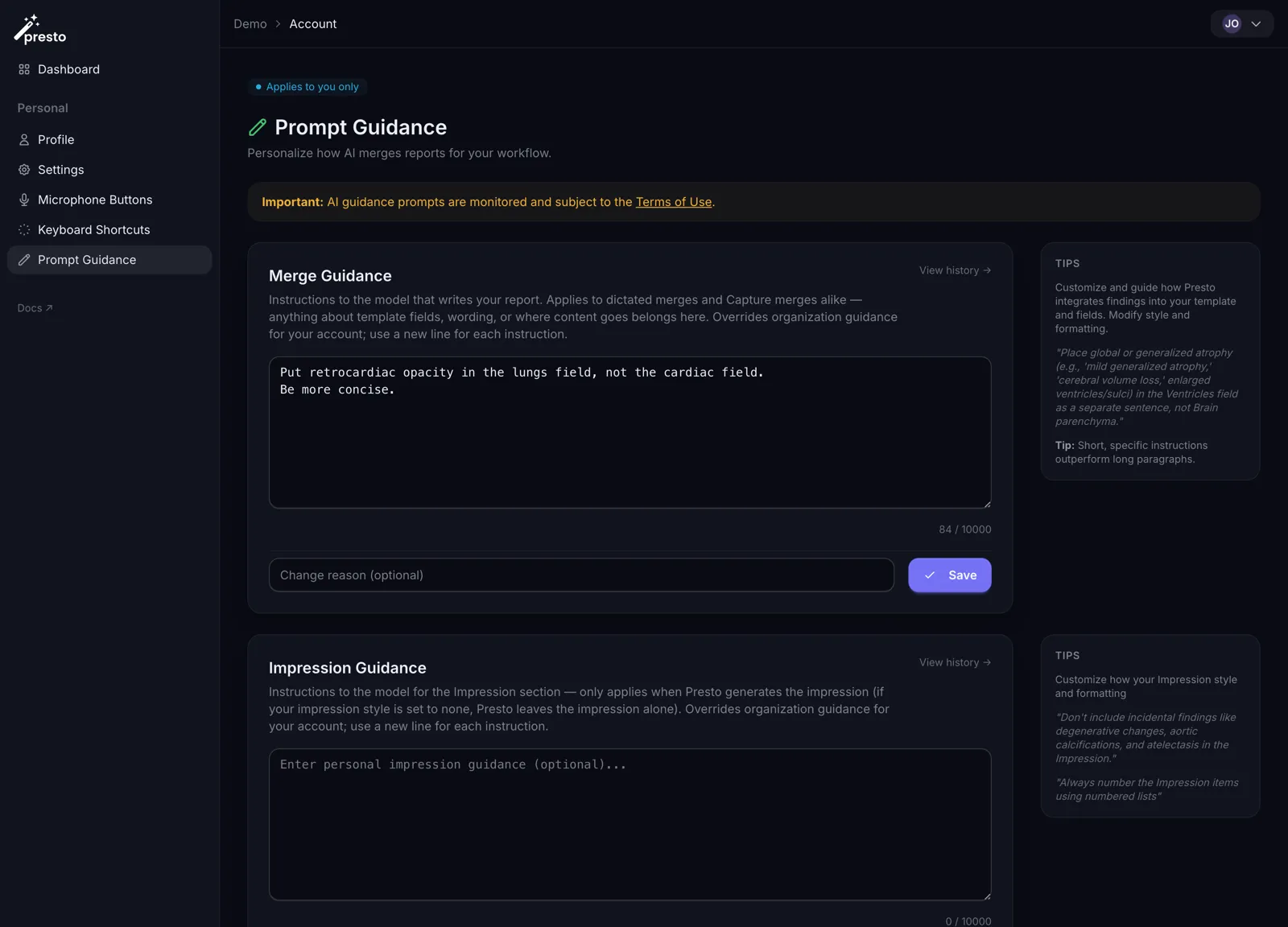
Step 4: Save Your Changes
Section titled “Step 4: Save Your Changes”Each slot has its own Save button. Click the one in the Merge Guidance card. Your guidance takes effect on the next merge.
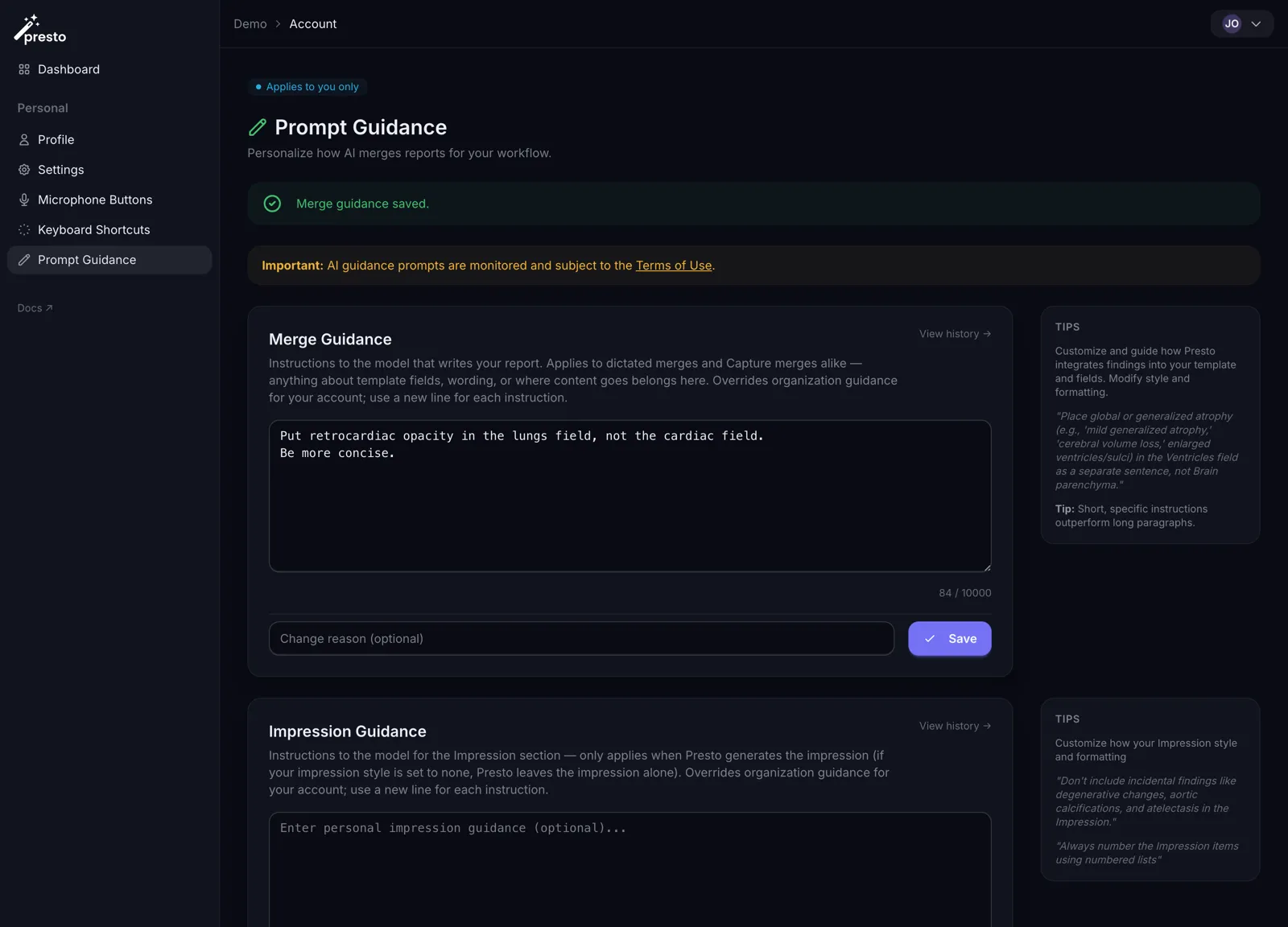
Step 5: Customize Capture Guidance
Section titled “Step 5: Customize Capture Guidance”Capture Guidance controls how Presto extracts and formats measurements from worksheets, prior reports, and other captured documents. Write brief instructions for how you’d like extracted values labeled or presented. For example:
- “Always spell out measurement abbreviations in full”
- “Label bone density values with the anatomical site”
Use a new line for each instruction. Short, specific instructions work best. Click Save when done — your guidance takes effect on the next capture.
Capture Guidance instructs the model that reads the captured screenshot, not the model that writes your report. It never sees your report template, so instructions about report fields or wording have no effect here — put those in Merge Guidance instead.